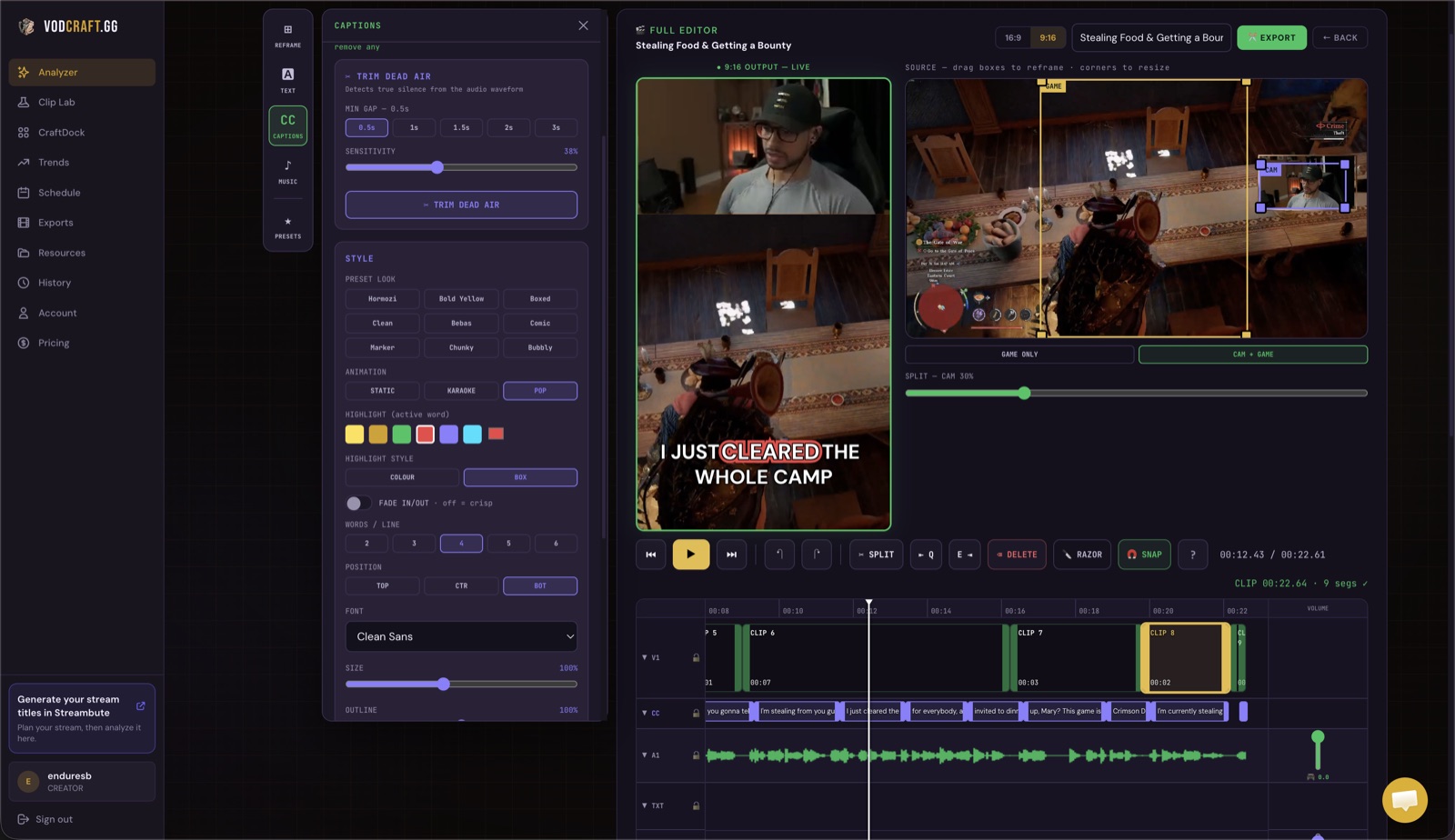
VODcraft lets you export Twitch clips to DaVinci Resolve as an editor-ready XML timeline. The AI scrubs your VOD, scores the highest-virality moments with chat-spike and narrative signals, then hands Resolve a finished timeline — every clip placed, every in and out point set.
DaVinci Resolve is one of the best free editors a gaming creator can use — color, Fusion, Fairlight, the works. But Resolve was never built to find your best moments. Drop a four-hour Twitch broadcast onto a timeline and you are still the one scrubbing the playhead, hunting for the clutch ace, the chat-melting fail, or the moment the lobby lost it. That is hours of unpaid timeline-staring before you cut a single frame.
VODcraft fixes the part Resolve can't. Point it at a Twitch VOD and the AI transcribes the stream, reads your chat-spike and virality signals, maps the narrative arc of each moment, and ranks the clips most likely to pop on Reels, Shorts, and TikTok. Then it exports a DaVinci Resolve XML — a real timeline you import in seconds, with every selected clip already trimmed and placed. You open Resolve to edit, not to search.
Four steps from raw VOD to a Resolve timeline. The whole hand-off takes about five minutes — most of which is the AI doing the work.
Paste a Twitch VOD URL or upload a recording into VODcraft. The AI transcribes the full stream and begins analyzing chat-spike timing, hype moments, and on-screen narrative beats. No need to pre-trim anything.
VODcraft surfaces ranked clip suggestions, each with a virality score and a one-line reason it landed. Adjust the draggable in and out handles to tighten any moment, then keep the clips you want in the export set.
Choose the DaVinci Resolve XML export option. VODcraft writes a single timeline file containing every selected clip in sequence, with in and out points baked in — no manual marker placement, no spreadsheet of timecodes.
In DaVinci Resolve, open the Edit page and go to File > Import > Timeline, select the XML, then point Resolve at your original VOD in the media pool so it relinks the source. Your scored clips appear on the timeline, ready to cut, caption, and color.
DaVinci Resolve reads timeline interchange formats — XML (FCPXML-style) and EDL — through File > Import > Timeline. VODcraft generates the XML flavor Resolve expects, so each AI-scored clip becomes a clip instance on a single video track, ordered top to bottom by your selection, with source in and out points written as frame-accurate timecodes.
Because the XML references your source media by name rather than embedding video, the file is tiny and imports instantly. After import, Resolve prompts you to relink the media — point it at the original Twitch VOD in your project's media pool and every clip on the timeline snaps to the correct footage. From there you have full Resolve power: ripple-trim the edges, add Text+ titles, run the speed-warp on a clutch play, or send a single clip to Fusion for a custom intro.
This is the core difference between VODcraft and most one-click clip tools, which export a finished vertical video and stop. VODcraft can do that too — but for creators who live in Resolve, it hands you an editor-ready timeline instead of a locked file, so nothing about your edit, your branding, or your color grade is out of your hands.
Gaming VODs are long, chat-driven, and full of moments a generic clipper misses. VODcraft was trained on exactly that.
Twitch chat is the loudest signal of a viral moment. VODcraft weighs chat velocity and emote storms so the clutch round and the rage quit float to the top — not just the loudest audio.
A great clip has setup, payoff, and reaction. VODcraft scores the full arc of a moment so your Resolve timeline starts and ends where the story does — not mid-sentence.
One file, every clip placed, frame-accurate in and out points. Import into Resolve and start editing immediately — no timecode spreadsheets, no manual marker hunting.
Built for FPS aces, soulslike boss kills, variety-stream bits, and full-send fails — the moments mainstream clip tools shrug at because they don't understand the lobby.
VODcraft exports an editor-ready XML timeline (FCPXML/XML interchange) that DaVinci Resolve imports through File > Import > Timeline. Each AI-scored clip arrives with its in and out points already set, so you skip manual scrubbing.
You can start free. The Free plan lets you analyze VODs and try exports, while Starter ($9/mo) and Creator ($19/mo) unlock more VOD hours and clip volume for high-output gaming channels.
Scrubbing a multi-hour gaming VOD by hand is the slow part. VODcraft's AI scores the highest-virality moments using chat-spike and narrative-arc signals, then hands Resolve a timeline of just those moments — so your time goes into editing, not hunting.
Yes. After importing the XML, point Resolve to the original VOD file in your media pool and it relinks every clip on the timeline to the source footage. The XML stays tiny because it references media rather than embedding it.
Absolutely. VODcraft also exports for Adobe Premiere Pro and Final Cut Pro, or you can render a finished vertical Reel straight from the built-in editor.
Let VODcraft find and score your best Twitch moments, then drop a ready-to-edit XML straight into DaVinci Resolve. Start free — no credit card.
TRY VODCRAFT FREE →