VODcraft turns a full Twitch VOD into an editor-ready XML timeline you import straight into Premiere Pro — every clip already cut, labeled, and ordered by virality. No scrubbing. No manual timestamping.
If you want to export Twitch clips to Premiere Pro, the slow way is to download a three-hour broadcast, drop it on a timeline, and scrub through hours of dead air hunting for the two minutes that actually pop. VODcraft kills that step. Paste your VOD, let the AI watch the whole stream, and walk away with a Premiere-ready XML sequence where your best moments are already cut into clips and stacked in order of how likely they are to go viral.
It is built specifically for gaming streamers. Instead of generic transcript matching, VODcraft scores moments on gaming-native virality signals — clutch plays, rage spikes, funny fails — and cross-references Twitch chat activity, so a 200-message hype spike during a 1v5 clutch surfaces ahead of a quiet menu screen. You stay in the editor you already know, but you skip the part of the workflow that wastes the most time.
The whole loop takes minutes, not the afternoon you'd lose scrubbing footage by hand.
Drop in a Twitch VOD or past-broadcast URL. VODcraft ingests and transcribes the entire stream automatically — no download or upload juggling.
The model analyzes the VOD with virality and chat-spike scoring, then ranks clip candidates with precise in/out timestamps and a reason for each pick.
Pick the clips you want, then export an editor-ready XML. Every selection is pre-cut and ordered by virality score — top moments first.
In Premiere Pro choose File → Import, select the XML, relink your source media, and your sequence opens with the clips already laid down.
Manually timestamping a stream is the single biggest time sink in clip production. Here's the difference.
VODcraft writes a standard editor XML that Premiere Pro reads natively through File → Import.
Because it's a standard XML, the same export drops into a DaVinci Resolve or Final Cut Pro workflow too — Premiere is just the most-requested target. You relink to your own source video on import, so you keep full-resolution footage and total control over the final edit.
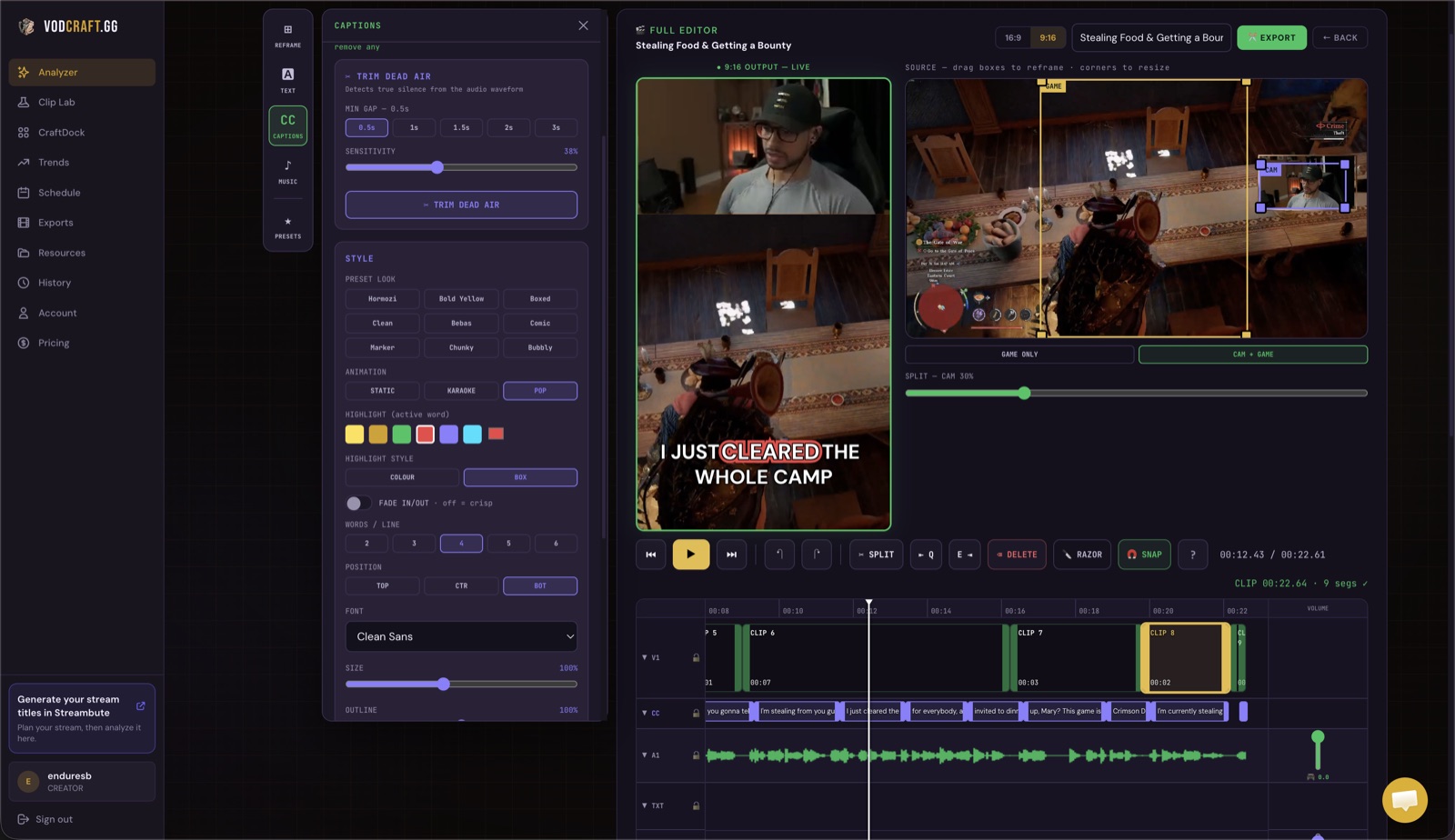
The XML route is for editors who live in Premiere Pro. But you don't have to leave VODcraft at all. The built-in editor lets you reframe a 16:9 gaming moment to vertical 9:16, auto-track the action so your face cam and gameplay stay in frame, add word-by-word captions, and export a ready-to-post Reel for TikTok, Shorts, or Twitch.
That's the real wedge versus typical one-click clip tools: VODcraft pairs gaming-native clip detection and narrative-arc scoring with both a finishing editor and an editor-ready XML hand-off. Casual clips you finish in-app; the hero edit you take to Premiere. For a head-to-head, see our VODcraft vs Opus Clip breakdown.
Yes. VODcraft exports a standard editor XML that Premiere Pro imports through File → Import. The same file is compatible with DaVinci Resolve and Final Cut Pro workflows, so you're never locked to one editor.
You paste the VOD URL and VODcraft analyzes it for you. When you import the XML into Premiere Pro you relink to your source video file, which keeps your footage at full resolution on your own timeline.
Absolutely. VODcraft's built-in editor handles vertical reframing, captions, and exporting a finished Reel. The XML export simply exists for creators who'd rather do their hero edits in Premiere Pro, Resolve, or Final Cut.
There's a Free tier to try the Twitch-VOD-to-clips workflow, plus Starter at $9/mo and Creator at $19/mo as you scale. See the full breakdown on the pricing page.
Paste a Twitch VOD, let the AI find your best clips, and export an XML that opens straight in Premiere Pro. Free to start — no credit card.
TRY VODCRAFT FREE →