Learning how to clip Twitch VODs without editing used to mean wrestling with a timeline in Premiere or DaVinci, scrubbing through hours of dead air to find the one play worth posting. It doesn't have to anymore. With AI that transcribes your stream, scores your funniest and most clutch moments, and reframes them to vertical with captions baked in, the entire job collapses into a handful of clicks — no editing software, no editing skills.
This guide walks through the exact workflow gaming streamers use to turn a long Twitch VOD into short clips for TikTok, Reels, and Shorts — without ever opening a video editor. If you'd rather just try it, you can start clipping free in the VODcraft app right now.
Why clipping Twitch VODs by hand is so brutal
A typical gaming stream runs four to eight hours. Inside that, maybe ten to twenty moments are genuinely clip-worthy — a clutch 1v3, a hilarious chat interaction, a rage moment, a perfectly-timed callout. Finding them by hand means scrubbing the whole VOD, marking in and out points, then doing the editing grunt work: cropping 16:9 gameplay down to a 9:16 vertical frame, keeping your facecam visible, adding captions so the clip lands even on mute, and rendering it out. That's an hour of editing for thirty seconds of footage, and most streamers simply never do it. The clips that would have grown your channel stay buried in the VOD forever.
The fix isn't "edit faster." It's to skip manual editing entirely and let AI do the finding, framing, and captioning for you.
How to clip Twitch VODs without editing: 5 steps
Here's the full workflow, start to finish. The whole thing typically takes a few minutes of your attention — most of which is just choosing which suggested clips you like.
Paste your Twitch VOD URL
Open VODcraft, grab the link to your Twitch VOD or past broadcast, and paste it in. There's no waiting on a giant file upload and no download to your hard drive — VODcraft pulls the VOD directly from the URL and starts processing.
Let the AI transcribe and find the best moments
VODcraft transcribes the entire stream, then scans it with gaming-native virality and chat-spike scoring — it watches for the moments your chat reacted to and the beats that tend to perform as shorts. Each candidate moment gets a score and a narrative arc, so you get clips with a real setup and payoff, not random 30-second slices.
Pick a clip from the ranked suggestions
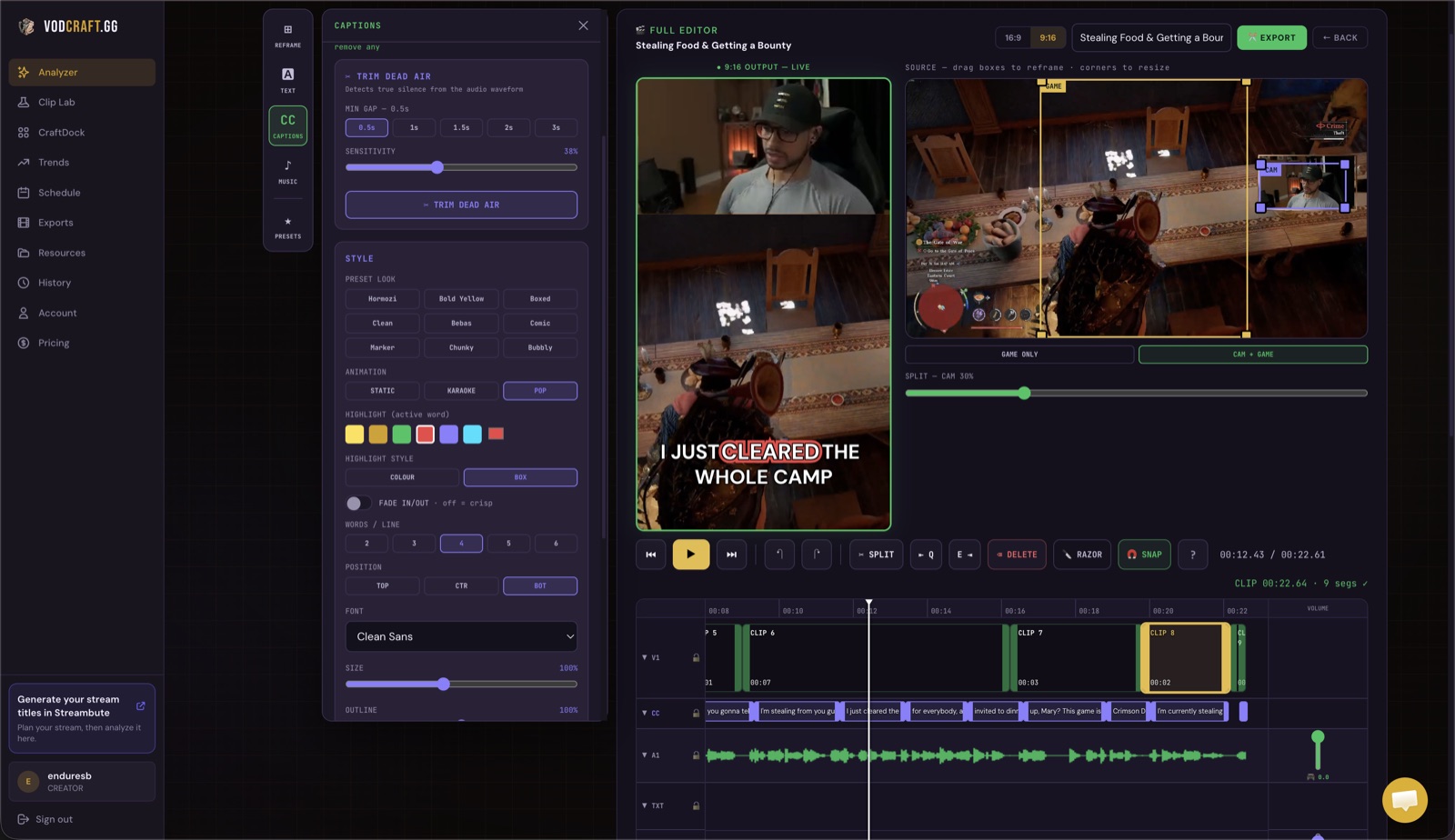
You get a ranked list of clip-worthy moments with previews. Click one to load it. If the start or end feels slightly off, drag the in and out points to trim it — right there, no separate editor required. Pick the ones you love and ignore the rest.
Auto-reframe to vertical and add captions
VODcraft reframes your 16:9 gameplay into a 9:16 vertical Reel, keeping the action and your facecam in frame, and burns in word-level captions automatically so the clip hooks viewers even on mute. This is the part that normally eats your evening — and it happens on its own.
Export a ready-to-post Reel — or editor-ready XML
Hit export and download a finished vertical video, ready to post straight to TikTok, Instagram Reels, or YouTube Shorts. Want to polish it further? Export an editor-ready XML and finish the cut in Premiere Pro, DaVinci Resolve, or Final Cut — your clips, transitions, and timing land on the timeline already laid out.
What makes this different from opening a video editor
Plenty of tools can cut a clip. The point of clipping Twitch VODs without editing is that the tedious decisions — which moment, where to crop, what to caption — get made for you, and made well, because the AI is built for gaming. Here's how the no-editor approach compares to the old way.
Made for gaming, not generic video
General clip tools treat a Twitch stream like any other video. VODcraft doesn't. It's tuned for gaming creators, which is why its picks feel right:
- Chat-spike scoring — your chat already tells you what was hype. VODcraft reads those spikes as a signal for which moments to surface.
- Narrative-arc detection — instead of a blunt 30-second window, clips are built around a setup and a payoff so they actually land as shorts.
- Gaming-native virality scoring — the model knows what tends to perform for gameplay content, from clutch plays to comedic timing.
- Built-in editor — when you do want hands-on control, trim, reframe, and caption right inside the app without bouncing to other software.
- Editor-ready XML export — for bigger edits, send your timeline straight to Premiere, DaVinci Resolve, or Final Cut.
That combination — gaming-aware moment-finding plus a built-in editor plus pro XML export — is the wedge that separates VODcraft from generic clippers. You can dig into all of it on the features page or check what's included on each plan on the pricing page.
Tips to get better clips faster
- Mark moments live. If you know a play was special, drop a marker or note while streaming — it makes the right segment even easier to pick from the suggestions later.
- Let your facecam breathe. The auto-reframe keeps your facecam in shot, so a clean, well-lit camera makes vertical clips far more engaging.
- Post the top picks, not all of them. Three strong clips a week beats twenty mediocre ones. Trust the scores and ship the best.
- Repurpose one VOD into a week. A single stream can produce enough clips to fill your short-form calendar — see how to clip a long Twitch stream for a deeper workflow.
Frequently asked questions
Stop scrubbing. Start clipping.
Paste a Twitch VOD, let the AI find your best moments, and export a ready-to-post Reel — no editor required.
TRY VODCRAFT FREE →